
National Response Room
This room is designed as Heaven-Sent’s disaster coordination and communication center for major response events, large-scale emergencies, and national or regional incidents that require organized command support, staff handoff, client coordination, and partner communication.
During activation, office links, communication tools, waiting room flow, scanning, fax support, file handoff, and meeting access can be brought online in a controlled way. Until then, some sections of this room remain visible for structure, planning, and readiness.
Emergency Guidance
This public section gives immediate direction first, then points people to the Heaven-Sent contact path.
If there is immediate danger, call now
If someone is in immediate danger, having a medical emergency, or needs urgent police, fire, or ambulance response, call 911 immediately. Veterans in crisis can call 988 and press 1 for the Veterans Crisis Line.
Because this room is public-facing, the active public contact area is limited to Joe, Tim, and Darrell. Office links and live meeting links are hidden until disaster activation or staff use.
If you have reached the wall and do not know what to do next, start with Joe and Heaven-Sent will help direct the handoff.
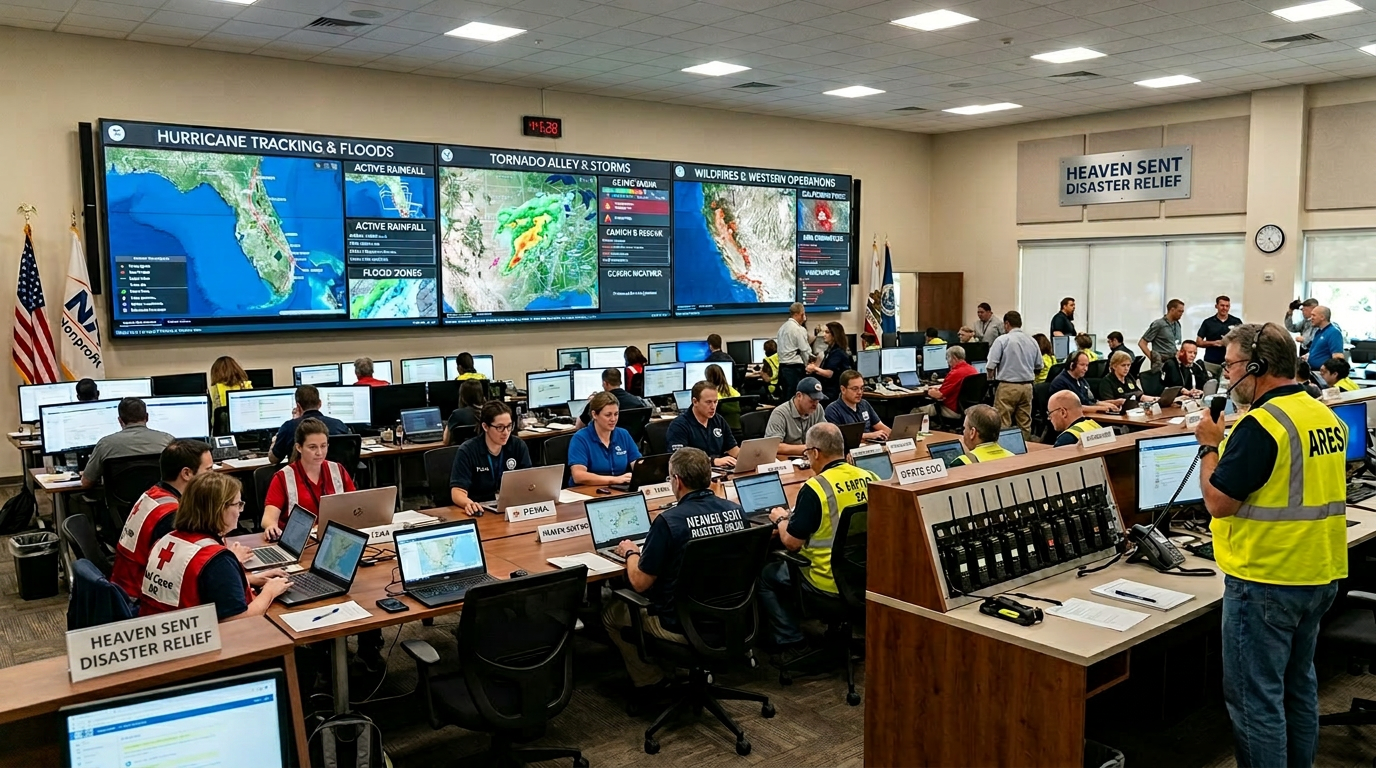
Command Room Image
This visual helps the page feel like a real operations room while the live communications pieces are still being finalized.
Public Contact Area
These are the public-facing direct contacts for this room while meeting links remain hidden and internal office launches stay restricted until activation.
Joe Ryan
Tim
Darrell
Room Directory
These room cards make the page feel operational now, while clearly showing which areas are activation-only, staff-only, or waiting for live RingCentral links.
Joe’s Office
Tim’s Office
Darrell’s Office
Teresa Office Link
Client Case Workers Room
Prayer Room
Client Waiting Room
Future Response Partner Room
Command Tools
These are stand-in tool cards to show what will be connected once your RingCentral details and workflow pieces are confirmed.
RingCentral Meeting Launch
File Handoff Center
Scanner Intake
Fax Routing
Operations Notes
- Activation note area
- Partner contact reminders
- Staff handoff instructions
- Room status updates
Client Flow Placeholder
Ready for RingCentral Setup