
Heaven Sent Veterans Assistance
We Are the Light
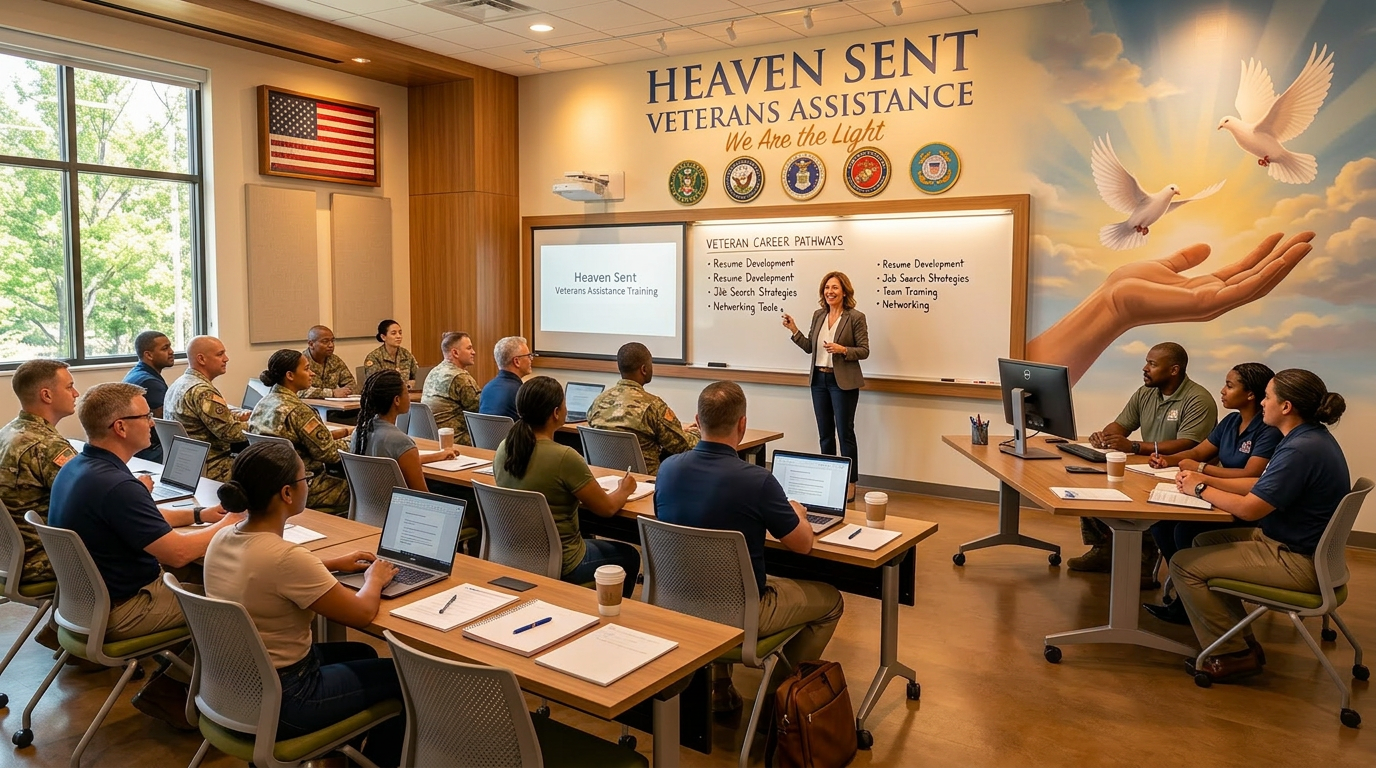
Your teacher will fill in this board with the date, time, topic, and guest speaker for the next class. Check here first when you come into the room.
Next class not set yet. Use the fields above to fill this in.
Teacher control bar
Fast controls for live classroom useTeacher chalk board
Use this as the main live teaching boardClass participation board
Live chat, questions, and class participationHow to use these boards: Use the Live board for comments everyone can see during class. Use Ask the teacher for private questions that only the teacher sees.
No live announcement posted yet.
Presentation and conference screen
Marked area for your movie, training video, or meeting embedReplace this section with an iframe or video embed. This spot can hold your class video, RingCentral room, or guest speaker screen.
<iframe src="YOUR-URL-HERE" title="Training screen"></iframe>
Student resource drawer
One place for handouts, links, and class materialsStore PDF handouts, lesson outlines, and printed materials for quick student access.
Keep assignment directions separate from chat so students can review them anytime.
Useful veteran support resources, benefit links, or training references can be listed here.
Post replay links or archived sessions for students who missed the live training.
Student sign-up and class roster
Track who signed up, where they are from, and class readiness| Name | State | Status | Seat | Attendance | |
|---|---|---|---|---|---|
| John Carter | john@example.com | Florida | Confirmed | A1 | |
| Melissa Grant | melissa@example.com | Georgia | Confirmed | A2 | |
| Samuel Reed | samuel@example.com | Texas | Pending | B1 | |
| Andrea Cole | andrea@example.com | Alabama | Waitlist | B2 | |
| Continue this roster up to 25 students and connect it to your signup system later. | |||||
Attendance note: If your teacher asks you to check in, find your name on the roster and tap the Present button next to it. If not, the attendance buttons are for teacher use only.
RingCentral and phone pad
Bring meetings, voice, and open discussion into one areaHow to join the live class call: When class is live, click Join live class for video and audio or Open discussion / chat tab for a separate discussion window. If you see an unavailable message, wait a moment and try again, or call a staff contact below for help.
Your teacher may give different RingCentral links for special events or private breakout rooms. If the link changes above, use the updated buttons to join.
This keypad is for teachers or staff to dial out from the RingCentral room. Students should normally join by clicking the buttons above.
Email board and notices
Quick message tools for the teacherHomework and file transfer
Keep assignments separate from the class discussion boardClass syllabus and lesson plan
Week-by-week topics so students know where they are in the journeyThis is a simple syllabus layout. Teachers can update it before each semester so students always know what is coming next.
Welcome, introductions, program overview, and classroom tools walk-through.
Understanding benefits, forms, and documentation. Basic terms and agencies.
Housing stability, crisis planning, and support systems around you.
Mental health, resilience, and spiritual support resources.
Money management, budgeting basics, and avoiding common traps.
Next steps, graduation conversation, and one-on-one follow-up options.
Quick quiz and poll
3–5 questions to check understanding at the end of classTeachers can change these questions anytime. Students can pick an answer and see their score immediately (this is a practice quiz, not a graded exam).
Your score will appear here after you press “Check my answers.”
Advanced quiz and review
Deeper questions for students ready to go furtherThis advanced quiz is optional. It helps students who want to test themselves more deeply on today’s material and real-life situations.
Your advanced score will appear here after you press “Check my advanced answers.”
Student help and tech support
Quick help strip for people joining classUse the RingCentral links or contact the classroom staff below if your audio, video, or screen is not loading.
Check the resource drawer and homework upload section before posting large files into the participation area.
Use the “Ask the teacher” form for private questions so the class board stays clear and organized.
Call or email the support contacts listed below for classroom and meeting help.
Classroom staff contacts
Direct support contacts for classroom and meeting helpPhone: (689) 204-1989 ext 101